
Overview
This documentation discusses the HOME section of ProcessMaker. It explains how end users can execute and manage their cases, as well as the options for users when running a case. In ProcessMaker, a case is an instance of a process. In other words, a process represents the map of work to be done, and a case is a new instance that follows this map. A running case passes through several activities (tasks or sub-processes) in the whole process. For example in an insurance process for a hospital, each claim of insurance for the treatment of a patient is represented by a singular case.
Each case in ProcessMaker has a unique ID - a 32 hexadecimal number to uniquely identify it - and a case number, which counts cases starting from 1.
Cases List
The case list is displayed on the left side of the screen, it is composed of a group of folders, which group cases based on their status. These options can be used to quickly and efficiently locate any particular case, or type of case.
To access this case list, click on HOME in the main top menu.
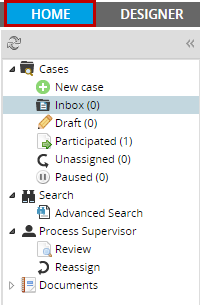
Cases
New Case
Users who have been assigned to work on a task of a process after a start event, will see the list of those processes by clicking on this option. These are the cases that the current user has been designated to work on, but has not yet begun the work.
To start a case and work on the steps (DynaForms, Input or Output Documents) of the first task, users must double click on the name of the process (which also describes the name of the initial task)
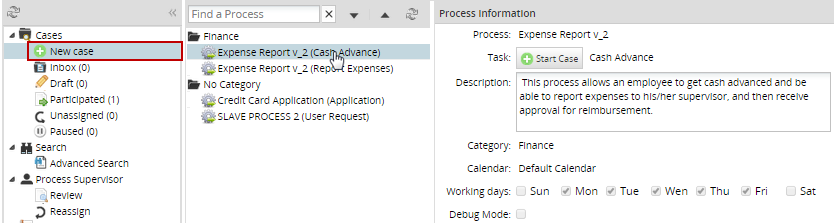
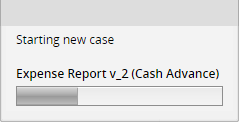
Cases can also be started by selecting the process and clicking on the  button. A window that shows the load progress of the first step is shown to the user.
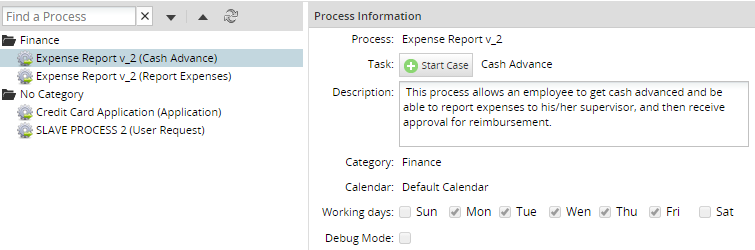
By selecting a process from the list, the Process Information located on the right side will display its information. The information shown is the following: name of the process, name of the initial task, description, category, the calendar related to the process, its working days, and the status of the debug mode.
Inbox
A case is placed in the user's Inbox, when the current task in the case has been assigned to his account. Cases in the Inbox have a "To Do" status, meaning that their current task has not been completed yet. Once the data in a task is changed, by submitting a DynaForm or another type of step is completed, then the case status changes to "Draft".

If the case is shown in boldface, then it has not yet been opened and it's considered as "unread". Once the case is opened by double clicking on it (or selecting it and clicking on Open), then it is considered as a "read" case.
Cases whose Due Date are listed in red have already passed the date when their current task was expected to be completed. The expected time for each task can be set under the Task Timing Control settings.
Cases are initially ordered first by their # (case number), but cases can be sorted in any column by clicking on its header. To switch between the ascending and descending orders, click on the up or down arrow which subsequently appears after clicking on a column header.
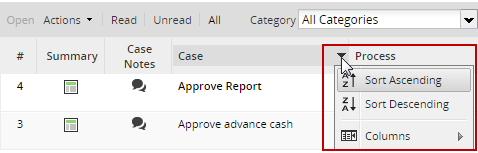
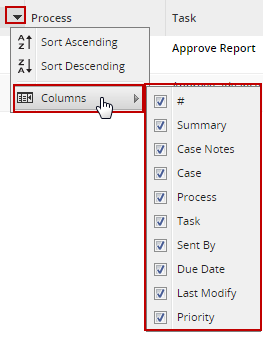
Also, it is possible to choose which columns will be shown in the inbox list by clicking on Columns:
At the top of the screen there are different options to filter cases according to their process, to search for cases and to jump to a particular case. By default, the Inbox displays all cases but there are options to filter the ones that have been already opened and cases that haven't:
- Open: This option opens the case selected. A case must be selected from the list to use this option.
- Actions: This option has a sub-menu as well.
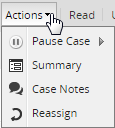
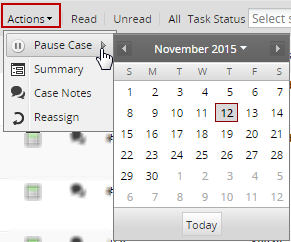
- Pause: By clicking on the pause icon a calendar will be displayed where the date on which the case will be unpaused has to be set up.
- Summary: Displays the information of the selected case by clicking on this icon
 . Read more about Case Summary.
 - Case Notes it allows to add a note of a selected case by clicking on the following icon
 . Read more about Case Notes.
 - Reassign: it allows to reassign the case to a different user by clicking on the icon
 , then a new window will be displayed with all of the available users:
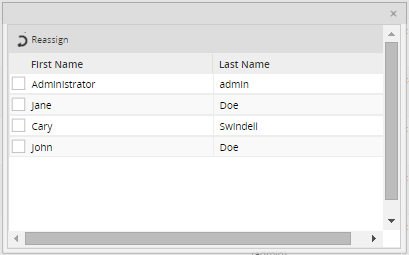
Note: From version 2.8 a validation to only reassign to one user in the case was added.
Click on the checkbox of the user to reassign the case and then click on Reassign.
- Read: Click on it to list cases which have already been opened (but haven't had their data changed yet).
- Unread: Click on it to list cases which have not yet been opened.
- All: Click on it to show all cases "read" or/and "unread".
Where:
Draft
Includes cases that are being edited or advanced by the user but have not yet been submitted to the next task. A case status changes to "draft" when the assigned user has started to work on the current task, but has not completed it. New cases in their initial task automatically have "Draft" status when they are created. The status of the case changes from "To Do" to "Draft" when submitting a DynaForm or passing an Input Document, Output Document or external step.
Participated
A participated case is a case in which a user has participated, meaning that the case was assigned to work on at least one of the tasks in the case. When the user clicks on this option, a panel on the right side will show a cases list, three options at the top, and links to filter, like in the illustration:
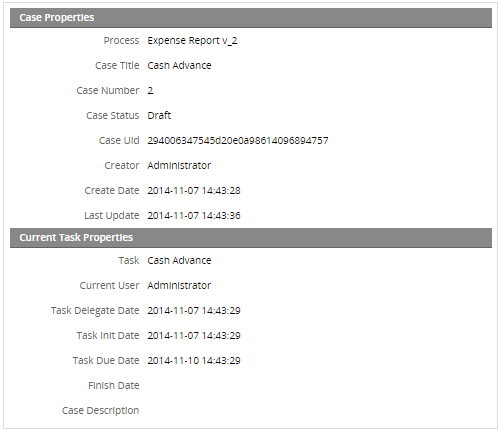
The options to filter the participated cases are:
- Open: This option displays the information of the case as shown in the image above.
- Started by me: Only the cases started by the current user will be shown in the list.
- Read: Only cases that have been already opened will be shown by clicking on this option.
- Unread: Cases that have not been opened yet will be shown.
- All: All cases are shown.
- Unassigned: Shows the list of cases that have the Self-Service assignment method and have not been claimed yet.
- Paused: Shows the list of cases that have been paused.
Unassigned
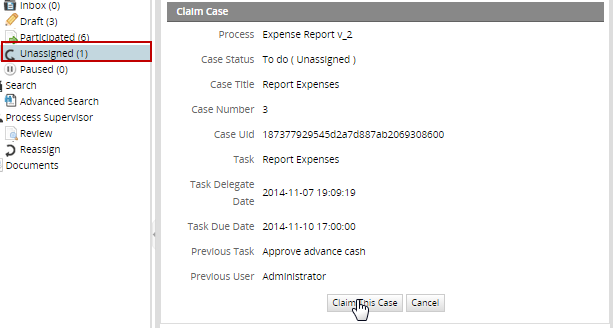
In an unassigned case its current task has a Self Service assignment rule, meaning that any one of the users assigned to the task can decide to claim the case as their own. Before the case is claimed its status is set to "Unassigned"
Paused
A case can be paused, meaning that it is temporarily unavailable and cannot be opened or worked on. Paused cases may have an "unpause" date after which they will be available to be opened and worked on again. Paused cases can also be unpaused if the user currently assigned to work on the case or a Process Supervisor manually unpauses the case. Note that the cron.php file needs to be executed in order for a case to be automatically unpaused on its unpause date.

Searching Criteria
At the top of all the lists (Inbox, Draft, Participated, Unassigned, Pause), there are different search criteria:

- Process: search by all processes created in the workflow.
- Search: Searchs a specific content in the following columns:
- #
- Case
- Process
- Task

- Jump to: by entering a number of the case and clicking on Jump to, it will redirect to a specific case.
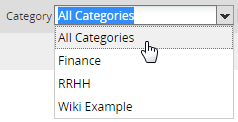
- Category: search by a category created in ProcessMaker. It is worth mentioning that this search will run ONLY with Solr disabled.
Search
Advanced Search
The Advanced Search submenu appears for users who have the PM_ALLCASES permission in their role. It displays all the cases in the workspace and allows users to search for cases according to the following criteria:
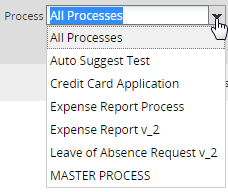
- Process: It is possible to search by All Processes or select a specific one.
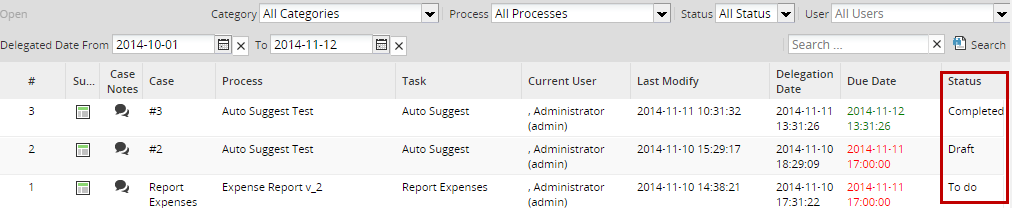
- Status: It is possible to search by All Status or select a specific one such as draft, to do and completed.
- User: It is possible to search by All Users or select a specific one.

Search by All Users which will display those cases that are Unassigned:

As you can see on the image above, the [UNASSIGNED] label has been added for cases with self service assignment rule.
Note: As the image above shows the search can be done by one or more search criteria at the same time. On the example the search was done by users and status.
- Search: Finally it is possible to enter a specific word on the last criteria search box as shown in the image below.

Enter the criteria and click on Search. For example, searching the number of a case would result in the following:

Available Version: From 2.8

Search fields were added in version 2.8.0 and later, to be able to search when the current task was routed (delegated).
- Delegate Date From: Search for cases which were last routed (delegated) to the current task after this date. Click on
 to select a date.
 - To: Search for cases that were last routed (delegated) to the current task before this date. Click on to select a date.
After selecting the dates, click on Filter or
 to display the result.
Click on the X button next to the Delegate Date From and To fields to clear the date selected in these fields

Process Supervisor
Review
Includes cases that have been sent back to the process supervisor (to learn more about supervisors, see this documentation. This tab is available only if the user is a process supervisor and for that it is necessary that his/her role contains the PM_SUPERVISOR permission.
Reassign
Includes cases that may be reassigned to another user. This tab is available only if the user has in its role the PM_REASSIGNCASE permission. To reassign a case click on this menu. In the top, the user will see the following options:

Select the case and click on Reassign, the following window will display:
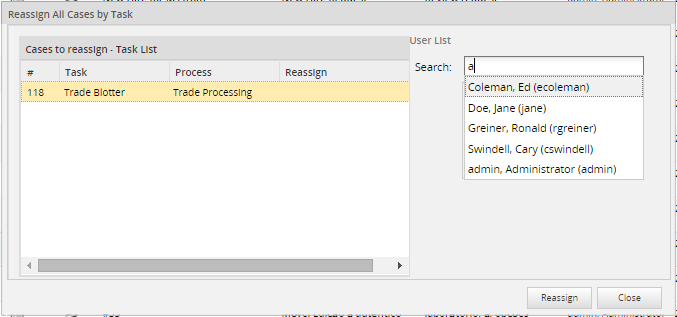
As it shown in the image the list of all users assigned to this task will be displayed, select the user to whom the case will be reassigned.
Documents
The documents panel will allow users to arrange the documents in different folders that can be created from this interface. Only users, such the admin, who have the PM_FOLDERS_VIEW on his/her role or any other user with this role assigned, will have the access to this new option.
Note: You don't need to set process permissions to give users access to any type of file managed during the process execution. All files uploaded or generated in a process will be stored in this section.
When the user clicks on the Documents option, he/she will see the right side panel(observe the following illustration) divided into two panels:
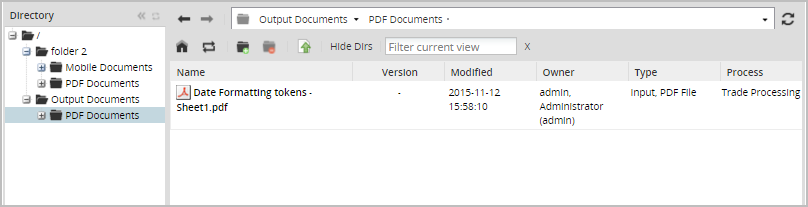
a. Directory: it manages folders and their structure, so a list of created folders either using the documents option, or using Destination Path option for Output or Input Documents could be created on this panel. Directories will be created following a tree structure using sub-directories and files.
b. List of Folders and Files: it manages folders and files, so a list of all the input documents uploaded and output documents generated during the process as well as folders will be displayed inside this panel.
Note: Due to a data consistency only a logical delete of the document is performed, it means the document will be still stored on the database, the only modification is on the APP_DOCUMENT table, when the document is deleted its status changes to DELETED.
Directory
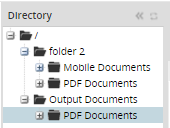
Folders will be displayed on the left side of the panel, they will be created as a tree structure as shown in the image below:
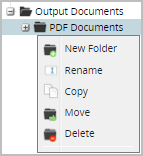
By right clicking on the folder, a menu with the New Folder, Copy, Move and Delete options for each folder will be displayed:
Creating New Folders
Take into account that folders can be manually created in this section and they can also be created by running cases where an Output or Input Document was created with a destination file defined for both of them. To manually create a folder, right click on the respective folder where the sub folder will be created. For instance, if it's required to create a folder at the root level, right click on  folder, click on the New Folder option, and the following box will display:
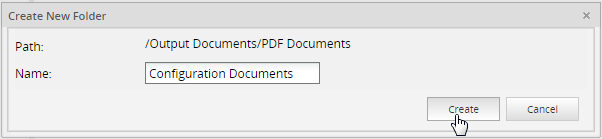
Where:
- Path: Shows the path where the folder will be created.
- Name: Name of the folder to be created.
The new folder will be created inside the parent folder:
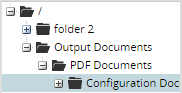
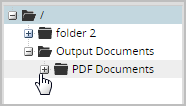
Next to the main folder (Output Documents) the + will be added automatically when more than one file or folder has been created inside this, click on it to expand or contract the directory:
Moving Folders
A folder, including all of its content can be moved inside another folder. Once the folder is moved from one location to another, it will be removed from the original location.
For example, the following structure is set with a file uploaded inside a PDF Documents folder:
Move the PDF documents folder at the same level as the Root Folder by right clicking on PDF Documents folder and select the Move option, a destination box will appear where the path of the folder that will be moved must be selected:
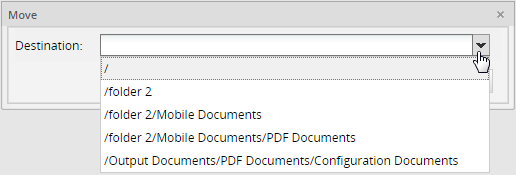
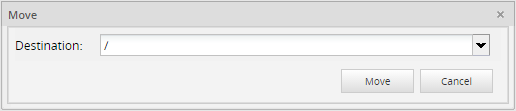
A dropdown will show all available paths to move folders, select / to have the folder moved:
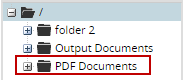
Finally, the folder and its files will be moved. The final structure is shown in the image below:
Copying Folders
A folder, including all its content could be copied from one location to another, keeping the original file on both locations.
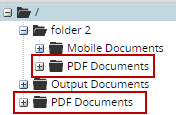
For instance, to copy the PDF Documents folder inside folder 2. Right click on PDF Documents folder and click on Copy the following box will be displayed:
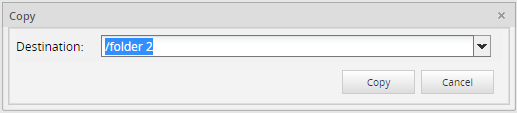
Select the destination and click on the Copy button, the folder and its content will be copied:
Renaming Folder Names
A folder could be renamed by clicking once over the name of the folder or by right clicking on it and selecting the Rename option.
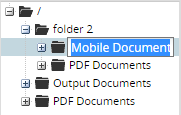
Rename the Documents folder to Mobile Pictures the result will be
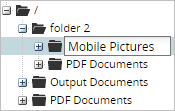
Note: Only if folders are located on different paths then they will be able to have the same name.
Deleting Folders
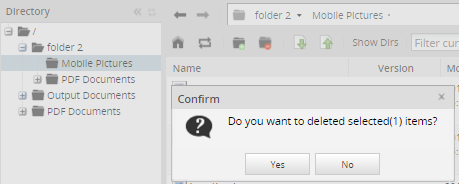
A folder, including all its content (including sub folders) could be deleted. Right click on the folder then click on the Delete option, and a message box will be displayed to confirm if the folder will be deleted.
List of Folders and Files
It manages folders and files which will be displayed on the left side panel:

 Root folder: Click on this option to go into the Root Folder.
 Reload: Refresh the list of documents.
 New Folder: Creates a new folder.
 Delete Folder: Deletes a created folder.
 Download a file: Downloads an specific file previously chosen from the list.
 Upload a file: Uploads a file.
- Show Dirs: It shows the directory or directories created next to the files inside them. For example, if this option is selected and then the Root Folder icon is clicked, all folders located at that level will be displayed:
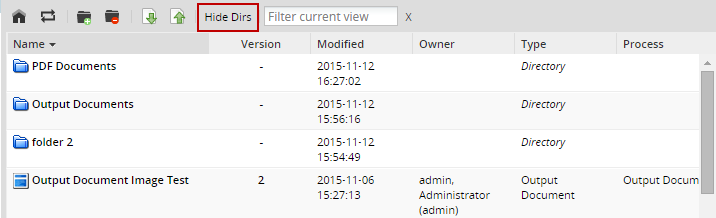
After clicking on this button and showing the directories, the button changes its label to Hide Dirs
- Filter current view: it only searches files displayed in the current page view. The search is neither recursive nor by folder names.
Managing Files
The list of files manually uploaded or uploaded while running cases in ProcessMaker, is shown at the right side to the window.
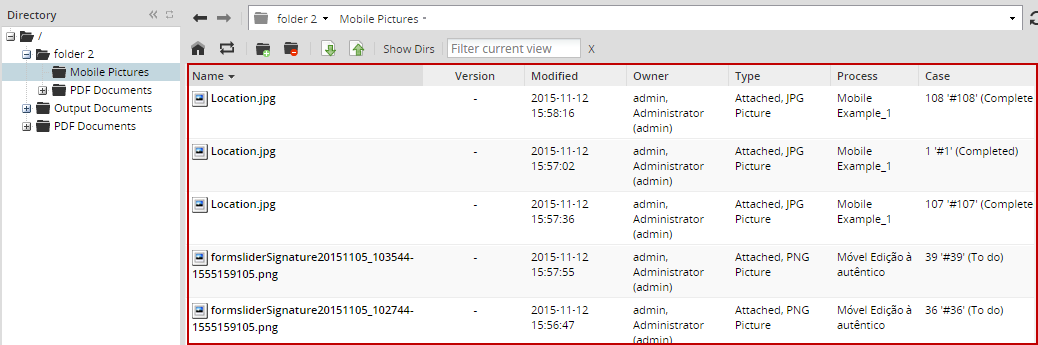
Where:
- Name: Name of the folder/file.
- Version: Version of the document. This is defined if the Output or Input Document has the versioning enabled.
- Modified: Date when documents or folders where modified.
- Owner: Owner of the document or folder. It means the person who run a case and uploaded or generated a Document, or a person who creates a folder.
- Type: Type of the document, which can be PDF File, Word Document, External, Power Point File, PNG Picture, JPG, GIF, Input File, Output File.
- Process: Name of the process where the file uploaded or generated is related. Folders are not associated to a Process, even if they were created while running cases, so no information will be displayed.
- Case: Name and Number of the case where a file uploaded or generated is related. Cases are not associated to a Process, even if they were created while running cases, so no information will be displayed.
Deleting Files and Folders
It is possible to delete one or more files at a time. To delete a file right click on it and select the Delete option. To delete more than one file at the same time select them by using the SHIFT or CTRL keys. Right click on the selection and select the Delete option.
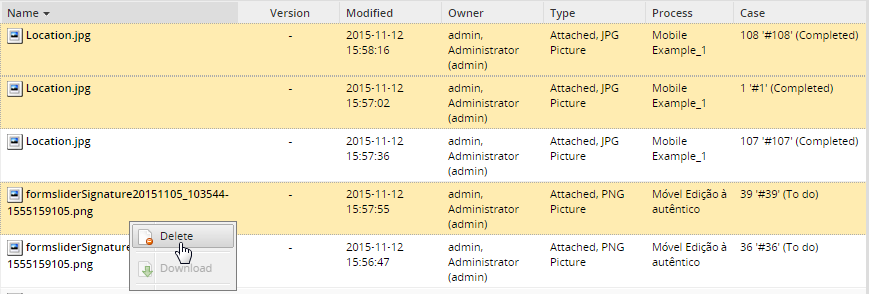
A confirmation box is displayed before deleting the files. Click on Yes to delete the file or click on No to close the box without making any deletion.
Note: If during the process the same document was generated as a PDF and DOC format and one of them is deleted form the list then both of them will be deleted because they have the same ID.
Downloading Files
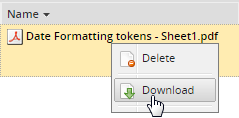
A document of the list can be download to the computer. To do so, select the file to be downloaded and right click on it. Select the option Download
Uploading Files
Up to seven files can be uploaded in the folder by clicking on the Upload option on the top menu.
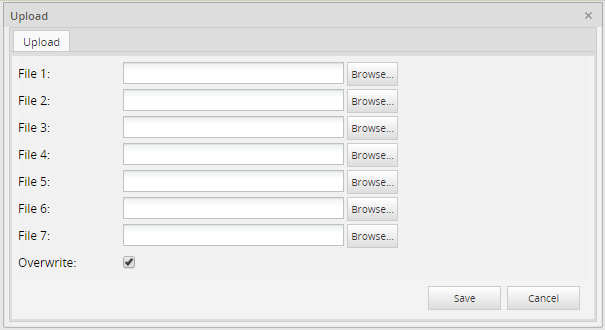
If an existing file is uploaded check the Overwrite option, otherwise it will be uploaded as if it were a different file.
Running Cases
When running a case there are four options at the top of the Menu like the one shown in the illustration bellow.

Steps
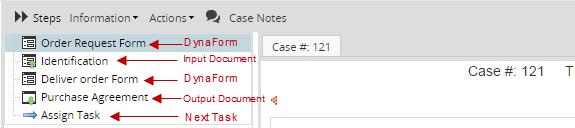
It shows all the DynaForms, Output and Input Documents assigned in the current task, so it can be accessed easily into each one of them:
Assigning Tasks
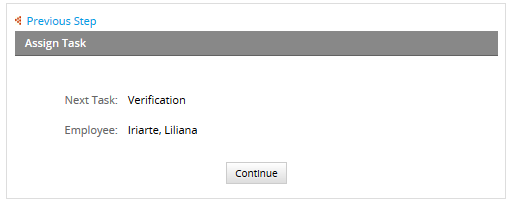
When all steps in a task have been completed, the case is ready to be derived into the next task. At this point the derivation screen will display the information of the next task:
Where:
- Next Task: Name of the next task where the case will derive.
- Employee: Name of the user who will be in charge of executing the task.
If for some reason there is no user assigned to the next task, the following message will be displayed:

Information
It shows all the information of the current process:
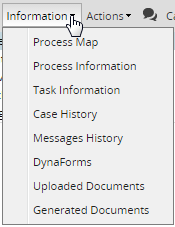
Process Map
By clicking on the Process Map option a new tab will open next to the current case:
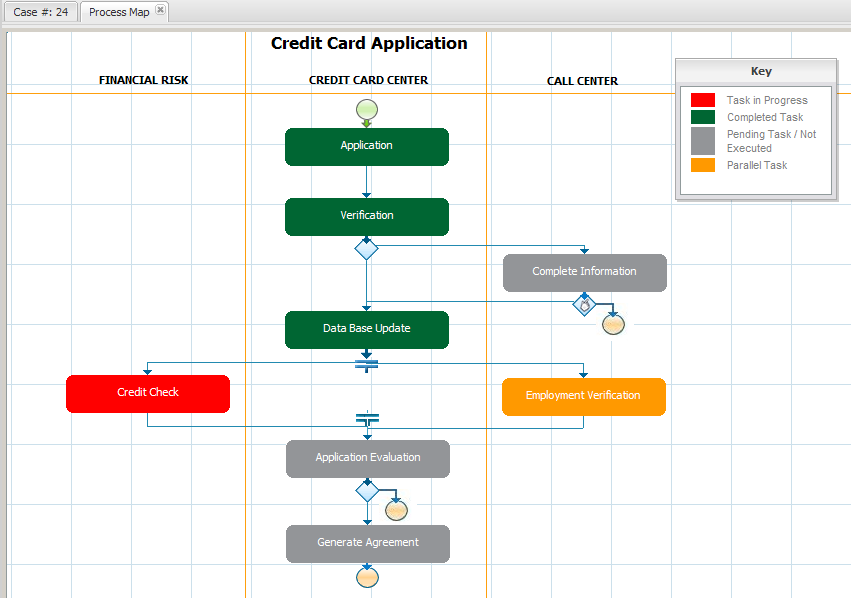
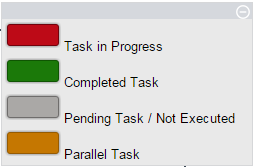
It's very useful for the user to check where in the process is the task on execution. Each task will be differentiated by color which represents a state of a task. Next to the process there is a Key with the colors explanation is displayed:
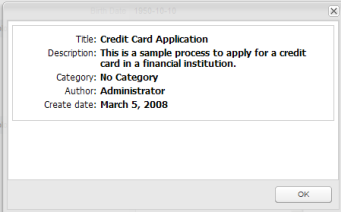
Process Information
By clicking on Process Information a new window with the information of the current process will display:
Task Information
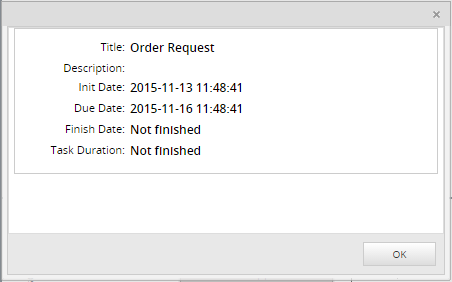
By clicking on Task Information a new window with the information of the current task will be displayed.
Case History
This option allows viewing all changes made over the form fields assigned to the tasks of the process that have been already completed or are still in progress. Take into consideration that to be able to see the case history of a process the user must have view permissions over Dynaforms.
Click on the Case History option to open a new tab with the list of tasks routed or still in progress.
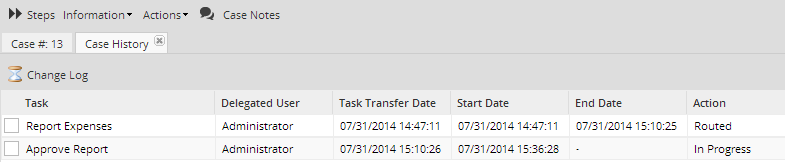
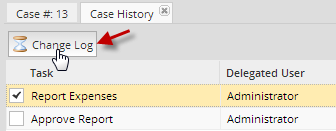
To view the changes made over the fields of all Dynaforms, select any task and click on the option Change Log.
This option will open another tab like in the following figure:

Where:
- This column lists all Dynaforms of cases already routed.
- Time and date of the changes made over the DynaForm.
- User who made the changes over the Dynaform.
- Number of fields that were changed in the DynaForm. Click on this option to expand the detail of the changes which include the name of each changed field, its previous and new value.
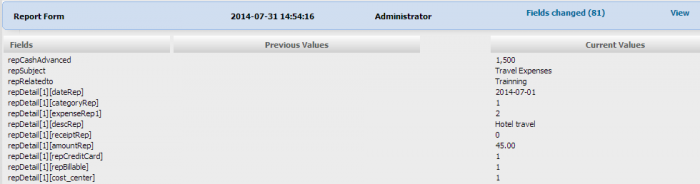
- The View option opens a tab with a view of the DynaForm and the changes in the fields.
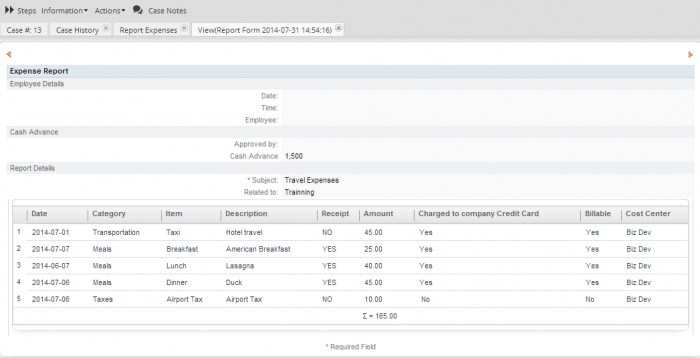
Note: Users with "Dynaform" permissions might find a problem when trying to download the uploaded documents in the view mode. The same document might be downloaded from different file fields. Please see this section to learn about this issue.
Message History
It shows all the email notifications sent during the process. Remember that it is not possible to restrict users per case history, that means all users will be able to see the case history no matter which permissions were set for them.

- Preview: it displays the message sent, not only derivation messages and email notifications but also cases notes added.
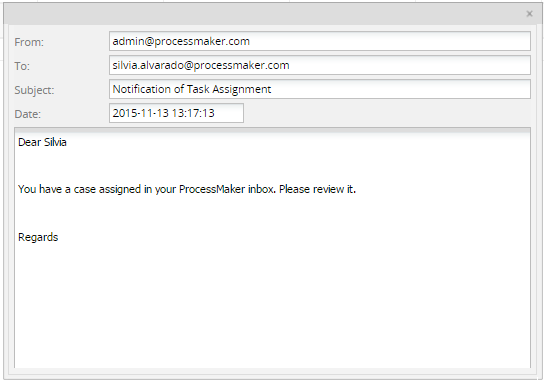
- Resend: resends the message, use this option in case the message hasn't been sent or if the message needs to be send again.
Note: From version 2.5.1 users will need to have permissions to resend notifications.
Dynaforms
This option shows all the dynaforms defined in the process. User must have Process Permissions to see the list of DynaForms. The list of DynaForms will appear during the execution of a case (Inbox, Draft) or at the end of it (Participated).
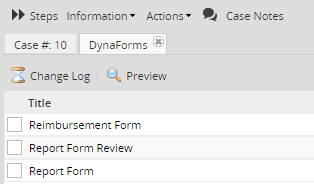
Change Log
It shows all changes made by any user who has been assigned with Process Permissions to have access to DynaForms which belongs to the current case. Also, in this section, any modification made by the process Supervisor will be reflected in the change log. It shows the following information:
- Field Name: Name of the field which was modified. Usually the name which is displayed is the name given when the field was created.
- Previous Values: If some previous changes were made those values will be displayed on this field.
- Current Values: It will display all the fields and their values modified.
Preview
By selecting a dynaform, the preview of what was filled during the case will be displayed on view mode.
Note: A problem may occur when users that have the Dynaform permission want to download the uploaded documents in the "preview" of the Dynaform that has more than one file field in it. When downloading the uploaded documents they will find that the same document is downloaded even when the files are different. This happens in Dynaforms that use the same input document several times in different file fields inside the same Dynaform. At the moment, there is no manner to differentiate where each file belongs, so it will always take the last one by default. The best way to prevent this from happening is to assign different input documents to each file field in a Dynaform.
Uploaded Documents
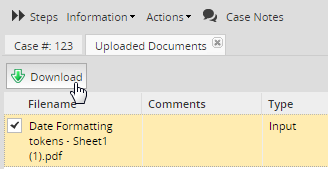
It shows all the allowed documents uploaded by any input document defined during the process:

Users can download the document at any time during the process by clicking on the Download button (also by double clicking on the name of the Input Document):
Generated Documents
It shows all the allowed documents generated by any output document defined during the process:

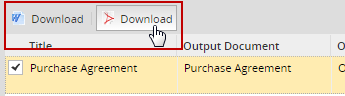
There are the .doc and .pdf extension options to download the document by clicking on their corresponding icons. Take into account that by double clicking on the name of the file, it will be downloaded as well.
Actions
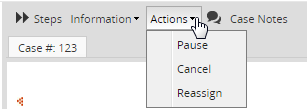
Pause
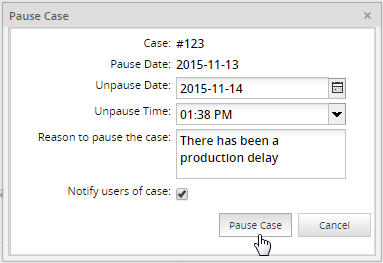
A selected case from the list can be paused by clicking on the calendar icon. As the image below shows a calendar will be displayed in which the date of the unpaused case must be defined
Note 1: Unpausing a case will cause the due date for the current task to be recalculated, starting from the time when the case was unpaused.
Note 2: It is necessary to have the cron configured, since this action depends on the cron execution; if not, the only way to unpause a case is doing it manually.
Delete
If a case is still in its initial task, it can be deleted. Its record will be removed from the database. By default, only the user currently designated to work on the case has the rights to delete the case. If other users needs to delete the case, then assign them a role with the PM_DELETECASE permission and give them Process Permissions to be able to open the case. They may also need the PM_ALLCASES permission in their role in order to be able to find the case under HOME > Advanced Search.
Deleting an Open Case
To delete a case, open the case and select the Delete option from the Action menu.
A question box will appear to confirm whether the case should be deleted or not.
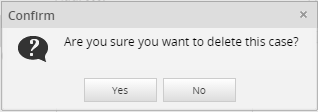
Select Yes to delete the case.
Deleting from a List of Cases
Cases can also be deleted by going to HOME > Inbox or HOME > Drafts and selecting the case to be deleted. To select more than one case, hold down the CTRL or SHIFT key while clicking on cases in the list. Then right click on a selected case and choose Delete from the dropdown menu.
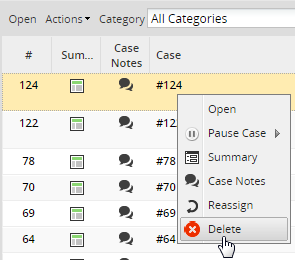
A question box will appear to confirm whether the case should be deleted or not as well. Click on Yes to delete the case.
Cancel
Once the case has moved onto subsequent tasks, it is no longer possible to delete the case using the ProcessMaker interface. Instead, the case may only be canceled, meaning that its status is changed to CANCELLED in the database, so it can no longer be worked on. Only cases with a TODO status can be cancelled. Note that only users who have a participation in the case are able to cancel it. However if setting Process Supervisor permissions, users who don't have a participation in the case will not be able to cancel it.
The last user designated to work on the case and any users who has Process Permissions may still open the canceled case in read-only mode by going to HOME > Participated (or HOME > Advanced Search if the user's role contains the PM_ALLCASES permission). However, the case's data and its associated files may no longer be changed.
A case can't be cancelled in the first task while a case is running. Cases can only be cancelled from the second task on. To do this, open the case and select the Cancel option from the Action menu:
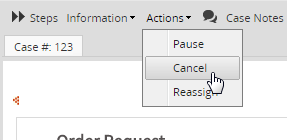
A new window will open where the reason to cancel the case must be filled.
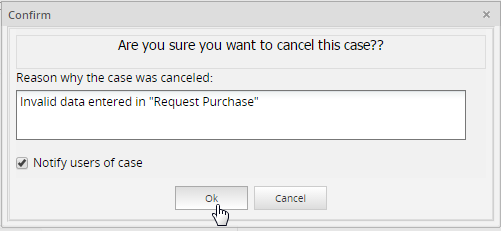
A quick message will be shown at the bottom right side of the window indicating that the case has been canceled.

As it was explained before, once the case is cancelled, it will be displayed on the participated list of the user who cancelled the case:

Note: A case can't be cancelled while it is is being executed inside a parallel evaluation or Parallel by Evaluation. In fact, the cancel option is not displayed inside the Action's menu
Reassign
A selected case from the list can be reassigned which means that the owner of a case will change. If a user different from the admin needs to reassign a case, then it's necessary to assign him a role with the PM_REASSIGNCASE permission included.
Click on the Reassing option and a window will display a list of available users, choose the one who will be the owner of the case and then click on Reassign:
When the case is reassigned a message will display on the bottom of the screen as follows:
Note 1: If the task is configured to send an automatic notification to the next assigned user, reassigning the case will NOT send out that notification. Likewise, it won't execute any triggers associated with task assignment.
Note 2: Reassigning a case will cause the due date for the current task to be recalculated based upon the time when the new user was assigned to the case and the new user's calendar.
Case Notes
Case Notes are used to add comments and observations about cases, which can be read by anyone who possesses proper poermissions.


