
Overview
Plugins allow additional functionality and interface customization into ProcessMaker. The main goal of plugins is to add new features to ProcessMaker.
List of Plugins
To see the list of plugins installed in ProcessMaker, go to the ADMIN menu and click on Plugins tab in the left sidebar:
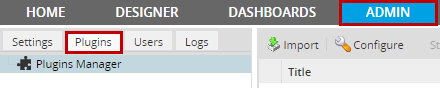
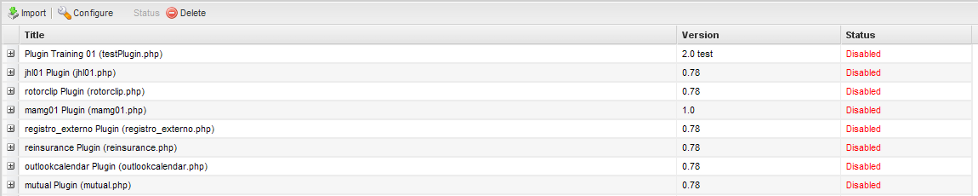
Then, click on the  icon to see the plugins panel, which shows a list of the installed plugins.
Import a Plugin
To import a new plugin, click on the "Import" button in the toolbar. Then, select a plugin's tar file to upload to ProcessMaker.
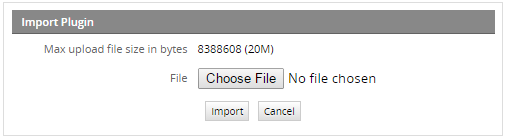
Note: Take into account that the name of the plugin must not contain the word "Plugin" since it is a reserved word of ProcessMaker.
Configure a Plugin
This option will be available if a plugin contains a package of many plugins inside. Choose a plugin from the list and then click on "Configure" button, a new list with many plugins will display.
Enable and Disable a Plugin
The current status of a plugin is displayed as Enabled or Disabled in the Plugin Manager list. When disabled, the plugin can not be used.
To change the status of a plugin, select that plugin in the list. When a plugin is selected in the list, the "Status" option in the toolbar will change to "Enable" or "Disable", depending on the plugin's current status.
- To enable a disabled plugin, click on the "Enable" button.
- To disable an enabled plugin, click on the "Disable" button.

Delete a Plugin
To delete a plugin, select the plugin in the Plugin Manager list and then click on the "Delete" button in the toolbar.
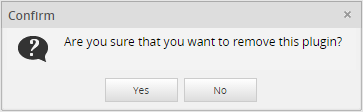
Confirm the deletion by clicking Yes.


