Processes

From ProcessMaker

Jump to: navigation, search

Contents

The Process Map

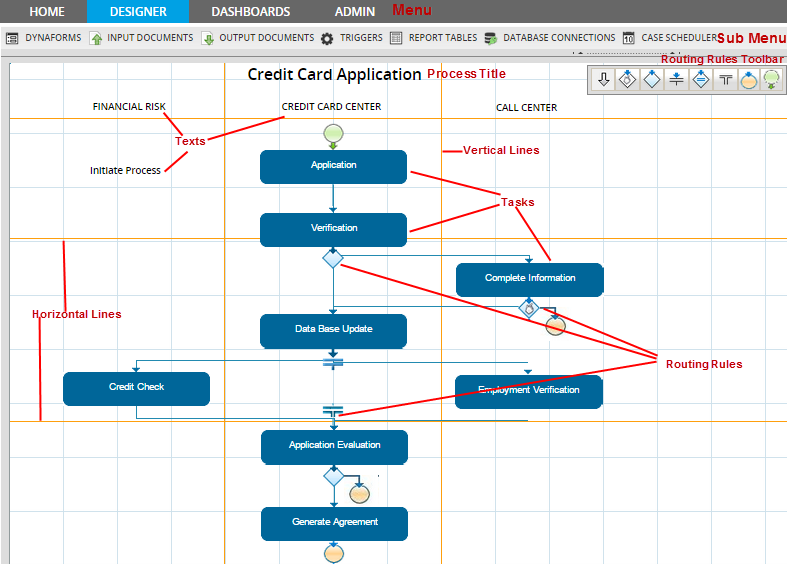
The Process Map is a grid area where business processes are laid out in a visual manner so they can be easily designed and their progress tracked at a glance. The Process Map uses a graphical drag-and-drop interface which allows elements to be easily added and deleted and rearranged. Right click contextual menus provide options for modifying the objects once they have been added to the map. Using the Process Map is a good way to clarify how the different people and departments in your organization will work together and to specify a logical order for decision making, approving requests, delegation of responsibilities, and fulfilling the necessary tasks to complete a process. The Process Map is designed to help you visually set up processes and their tasks, and then begin defining steps for each task.

image:ProcessMapLabels2.png

Tips for using the Process Map:

Since ProcessMaker is a web-based application, it may occasionally have trouble exiting dialog boxes in the Process Map. If ProcessMaker hangs when displaying a dialog box, return to the main Process Map by clicking the Image:RefreshButton.png refresh button on your web browser.

The Process Map does not offer an undo option and does not allow you to save different versions of the map. If you anticipate experimenting with the map, but might possibly want to return to a previous version of the map afterwards, it is a good idea to export the process before making any changes. To return to a previous version of the map, delete or rename the current process and then import the previous version.


Creating a Process

Login as the "admin" user or another user which has the PM_FACTORY permission in its role, so it can edit processes. Go to the PROCESSES menu, and click the New link at the top left of the list of processes.

Image:NewProcessLink.png

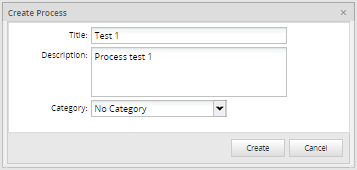
Enter a name and a description for the new process and click Save.

Image:NewProcess.png


Start with an existing Process

The easiest way to begin working with ProcessMaker is to import an existing process and adapt it to your needs. Click on the Import link and select an existing process to import. (Process files have a .pm extension.)

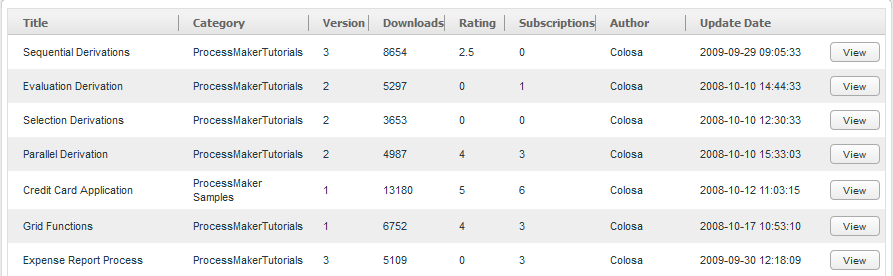
ProcessMaker provides a number of sample processes which can be downloaded for free from the ProcessMaker Library. To see the list of processes available for free download, click on the Browse Library link and select a process from the list.

To download one of the processes, click on the View link to the right of the process. In the dialog box which provides information about the process, click on the Download at the bottom, to automatically download and import the library.

The Map's Right Click Menu

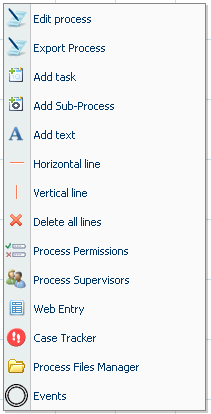
To start designing a process and adding elements to the Process Map, right click anywhere in a blank area on the map and select an option from the menu.

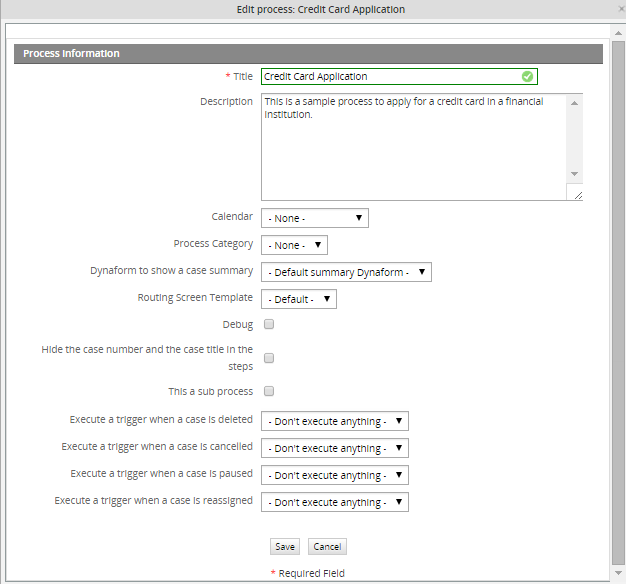
  • Image:Edit.gifEdit Process: This option allows the process name and its description to be modified. It also provides an option to activate Debug and an option to set a Calendar. See the Activating Debug Mode and Assign Calendar to Process section for more information.
  • Image:AddTask.gifAdd Task: Adds a new task to the Process Map.
  • Image:SubProcess.gifAdd SubProcess: Subprocesses allow cases to be run as a subprocess inside of a master process. For more information, see the Sub-Process section.
  • Image:AddText.gifAdd Text: Additional text labels can be added to the Process Map. This text can be used to label a set of tasks, identify departments in the organization, explain the routing logic, or even provide guidance to the user.
  • Image:HorizontalLine.gifHorizontal Line: Adds a horizontal line to the Process Map, to help visually divide up the process. Lines can be used to separate tasks or departments of your organization into logical groupings on your Process Map.
  • Image:VerticalLine.gifVertical Line: Adds a vertical line to the Process Map, to help visually divide up the process. Lines can be used to separate tasks or departments of your organization into logical groupings on your Process Map.
  • Image:Delete.gifDelete All Lines: This option will delete all horizontal and vertical lines on the Process Map.
  • Image:ProcessPermissions.gifProcess Permissions: This option allows for the definition of permissions for specific users to view different objects in a process, such as Dynaforms, Input Documents and Output Documents. Use Process Permissions to give specific users read-only access to information about cases. (For write access to cases, see Process Supervisors.) For more information, see the Process Permissions section.
  • Image:Users.gifProcess Supervisors: This submenu allows supervisors to be assigned to a process, so they can access its cases and change the case data in DynaForms and Input Documents, without being assigned to particular tasks in the process. For more information, see the Process Supervisors section.
  • Image:DynaForms.gifWeb Entry: Web Entry is means of accessing a DynaForm from an external web page. It is often used to externally initiate cases. For more information, see Web Entry.
  • Image:Tracker.gifCase Tracker: In this submenu the process designer can specify what production users of ProcessMaker are allowed to see when tracking cases. For more information, see the Case Tracker section.
  • Image:Folder.gifProcess File Manager: Use the Process File Manager to load external documents into ProcessMaker. Unlike standard Input Documents, which often change for each new case, this option is generally used for files which are unchanging and needed by all the cases. Also you can create email templates to send them as notifications. See the Create HTML email Template section for more information.
  • Image:Events.gif Events: Events allow a trigger to be fired or an email to be sent at a specified time during a process. For more information, see the Events section.

Defining Tasks

The first step in creating a Process is to define the tasks. In ProcessMaker a task is a logical group of sequential steps, sharing a common goal. Tasks can be assigned to different users or groups of users, so that a process can be used to coordinate the activities of different people or groups in an organization.

To create a task, right click on the a blank area on the process map and select the option Add Task from the menu. The task will be added to the ProcessMap at the location of the mouse pointer. The task can be moved on the map by clicking on it and dragging while holding down on the right mouse button.

To modify a task, right click on the task to select an option from the Task menu:

  • Image:Steps.gifSteps: In ProcessMaker a step is a piece of work that forms a clearly defined action within a task. Select this option to add a step to the task. See the section Defining Steps.
  • Image:Users.gifUsers & User Groups: Select this option to assign the task to user(s) or group(s), who will have permission to access and fulfil the task. See the section Assigning Tasks.
  • Image:Users.gifUsers & User Groups (Adhoc): Select this option to assign user(s) or group(s) to a task on an ad hoc basis. The normally assigned users to a task can reassign the case to any user or group who has been assigned ad hoc. See the section Assigning Tasks.
  • Image:Rules.gifDerivation Rules: Derivation rules, which are also known as routing rules will control the flow of work from one task to the next. See the Defining Routing Rules section.
  • Image:DeleteRules.gifDelete Derivation Rules: Select to remove derivation rules (routing rules) from the selected task.
  • Image:Delete.gifDelete Task: Select to delete the task.
  • Properties: Select to define many aspects of how a task is handled, such as how to transfer assignment to different users, time limits, notification to users, the case variable, whether a starting task, ad hoc assignment when errors, and label definition for the case. See the section Configuring Tasks


Task Warnings

Since the version PM 3994 task warnings have been added. The warnings are important because they will help designers notice if a task has steps and users. When a task is created it will have this icon on the upper right hand.

There are three cases for the warning to remain in the task:

1. When the task does not have task and steps. Look at the illustration bellow

File:PM_warnings.png

2. When the task does not have tasks. Look at the illustration bellow

File:PM_warnings_users.png

3. When the task does not have steps. Look at the illustration bellow

File:PM_warnings_steps.png

A task will not have warnings when it has users and steps.

Defining Routing Rules

Routing rules, which are also known as derivation rules, control workflow between tasks in a process. In other words, they determine which is the first task in a process and how work moves to the subsequent tasks, and so on until the process ends. Routing rules can move the workflow along a single path or divide the workflow into multiple threads. They can also evaluate conditions to determine which are the subsequent task(s)and even send the workflow down subprocesses, which are separate workflows with their own set of cases.

Types of Routing Rules:

  • Image:Sequential.gif Sequential: When one task is completed, a sequential routing rule will move the workflow directly to subsequent task(s).
  • Image:Selection.gif Selection: A selection routing rule allows the user assigned to the task to manually select the subsequent task(s) to be performed in the process.
  • Image:Evaluation.gif Evaluation: An evaluation routing rule uses a condition (which is a true or false expression in PHP) to decide whether the workflow moves to subsequent task(s).
  • Image:ParallelFork.gif Parallel (Fork): A parallel (fork) routing rule divides the workflow into two or more parallel tasks.
  • Image:ParallelByEvaluationFork.gif Parallel By Evaluation (Fork): A parallel by evaluation routing rule uses a condition to decide whether to divide the workflow into two more parallel tasks.
  • Image:ParallelJoin.gif Parallel (Join): A parallel (join) routing unites multiple parallel tasks in the workflow that had previously been divided by a parallel (fork) routing. All the parallel tasks must be completed before a parallel routing can take place.
  • Image:EndOfProcess.gif End of Process: End of process marks where to terminate the workflow.
  • Image:StartingTask.gif Starting Task: Starting task marks where to begin a process.


Applying routing rules

Routing rules are applied to specific tasks (and ProcessMaker even treats them as task objects). To apply a routing rule to a task, click on an icon in the Routing Rules Toolbar and drag the icon to the task while still holding down on the mouse button. Release the mouse button over a task to attach the routing rule to that task.

Image:RoutingRule0.png

Then drag the routing rule, which is shown as a red connector dot, to the subsequent task while still holding down on the mouse button, then release over the subsequent task to connect the two tasks.

Image:DragRoutingRule2ndTask.png Image:RoutingRule2.png Image:RoutingRule3.png

If the work can flow down multiple threads (paths) in the process, drag and drop additional routing rules from the toolbar to connect them as well.

Image:MultipleThreadsWorkflow.png

To change a routing rule to a different type, simple drag a routing rule from the toolbar and drop it on the task with an existing routing rule. When asked "Are you sure you want to change the derivation rule?", click Accept to change the type of routing rule.

Once a routing rule connects tasks, it can be edited by either clicking on the routing rule symbol in the Process Map or by right clicking on a task and selecting the option Derivation Rules from the menu.

Image:EditRoutingRule.png

Starting Task Routing Rule

Every process must have at least one Image:StartingTask.gif Starting Task routing rule which indicates which task should start the process. Either drag and drop the Image:StartingTask.gif icon from the toolbar to a task or right click on the task and select the option Properties from the dropdown menu. Under the Definition tab, mark the checkbox Image:Checkbox.png Starting Task.

Image:SelectStartingTaskCheckbox.png

Processes can have multiple starting tasks and even multiple work paths. For instance, an organization with a Sales department might want to start its "Invoice Process" at two different points: either by first contacting the client or by first sending a quote. In addition, it might want to start the "Invoice Process" with a different work path in the Finance department. If Sales is handling the invoice, then different tasks are executed than if Finance is handling it.

Image:MultipleStartingTasks.png

If a process has multiple starting tasks, then the person who starts the case may select which task starts the process. In the dropdown box, the name of the process is provided followed by the name of the starting task in parenthesis.

Image:SelectMultipleStartingTasks.png

End of Process Routing Rule

All processes must have at least one task with an Image:EndOfProcess.gif End of Process routing rule to terminate the process. There can be multiple ending points to any process. To add an End of Process routing rule to a task, drag and drop the Image:EndOfProcess.gif icon from the toolbar to a task or right click on a task which has an evaluation or selection routing rule and select the option Derivation Rules. Click the New link to add a routing rule, then in the dropdown box, select the option "End of process".

Sequential Routing Rule

With a Image:Sequential.gif sequential routing rule, workflow automatically flows to subsequent tasks, so no special configuration is required, after connecting the tasks.

Selection Routing Rule

A Image:Selection.gif selection routing rule allows the user assigned to the task to manually select which task will be the next in the workflow. After completing a task, the user will be presented with the available subsequent tasks and asked to choose one.

For instance, if creating a process to handle billing in dollars and Euros, a selection routing rule could be used to decide whether to generate a bill in dollars or in Euros.

Image:SelectionRoutingRuleMap.png

After adding the selection routing rule, double click on the routing rule to add "Descriptions" to the selection routing rule explaining why to choose the "Billing Dollars" and "Billing Euros" tasks.

Image:SelectionRoutingRuleDescriptions.png

These descriptions will help the user decide which task to choose when running a case:

Image: SelectionRoutingRuleDialog.png

Evaluation Routing Rule

An Image:Evaluation.gif evaluation routing rule uses a condition to decide whether the workflow moves to subsequent task(s). If the condition, which is a PHP expression, evaluates to True, then the workflow will move to the subsequent task. See more information on how to write proper PHP expressions, see the Defining Conditions section.

An evaluation routing rule is commonly used to decide between multiple tasks. If all the conditions are false then a case will never complete. If all the conditions are true, then the workflow will move to all the subsequent tasks, which may not be what is desired. Therefore, it is very important to test conditions and make sure that they don't yield unexpected outcomes.

The previous example of a billing processes could also be implemented with an evaluation routing rule instead of a selection routing rule.

Image:BillingEvaluationRuleMap.png

If a DynaForm is filled out in the "Initiate Billing" task, the user can select whether the bill will be in dollars or Euros.

Image:BillingForm.png

The choice of dollars or is be stored in the variable @@Currency which could be used in the conditions for the routing rule. Click on the evaluate routing rule in the Process Map and add the conditions.

Image:BillingEvaluationRules.png

If you get the following error message when running a case with an evaluation routing rule, check to see that you have defined a condition.

Image:NoDerivationRuleError.png

If a condition exists, then the problem is probably due to the fact that the condition contains an undefined variable. Verify that the variable exists, by clicking on the [ @@ ] button find the variable in the list of available variables. Remember that variable names in PHP are case sensitive.

If the variable was defined in a DynaForm, then the problem is that the values which are being entered into the DynaForm aren't being saved to variables. To allow your users to save their entered data in the Dynaform, add a image:SubmitButton.png Submit button to the DynaForm. To remind users to click the Submit button, go to the Properties tab of the DynaForm Designer and select the option "Show Prompt" for Next Step Link. If you want the data to be automatically saved to variables without the hassle of clicking the Submit button, select the option "Save and Continue".

Parallel (Fork) Routing Rule

A Image:ParallelFork.gif parallel (fork) routing rule divides the workflow in multiple threads (branches) which operate concurrently. Once the task has been completed the workflow will take different sub-threads starting at the same time. As an example, in the credit card application, where two parallel tasks will take place, because the facility officer sends a request for employment and credit checks.

Image:ParalleRoutingRuleMap.png

Once the parallel (fork) rules have been added, by double clicking on the routing rule you can see the following illustration. There it is possible to define more parallel tasks.

Image:ParalleRoutingRuleDescriptions.png

In order to ensure the workflow continues only when every parallel task is finished, they need a parallel Join Image:ParallelJoin.gif. For this reason, drag and drop the derivation on the first parallel task defined and connect it to the next task. Repeat this step for every task that used the parallel (fork) rule derivation. The description in the parallel (fork) will show what we have in the next illustration, so we know the task has been derived two times (this will depend on the number of parallel assignation we made).

Image:ParalleRoutingRuleDialog.png

Parallel by Evaluation (Fork) Routing Rule

A Image:ParallelByEvaluationFork.gif parallel by evaluation (fork) routing rule divides the workflow in multiple threads, evaluating them to determine which branches will operate. The sub-thread(s) will operate only if the condition evaluated true. And all of the sub-threads must be finished for the next task to start. For instance, if creating a process to handle report expense, where the employee will fill out a form and send it. We will use a parallel by (fork) to evaluate the report expense.

Image:ParalleByRoutingRuleMap.png

After adding the Image:ParallelByEvaluationFork.gif parallel by evaluation (fork), double click on the routing rule to add “Descriptions”, explaining when the task “Local Manager Approval”, “Regional Manager Approval” and/or “CEO Approval” will be started. When this conditions are being evaluated there can be more than one evaluated true, if that happen then one or more task will be started.

Image:ParalleByRoutingRuleDescriptions.png

These descriptions will show the user the path the task will be taking, when the case is running.

Image:ParalleByRoutingRuleDialog.png

To ensure that the workflow continues all of the sub-threads need a parallel join Image:ParallelJoin.gif to connect them to the next task. Only when all the true evaluated task(s) have been finished the subsequent task will start.

Defining Steps

In ProcessMaker a step is a piece of work that forms a clearly defined action within a task. A step can be a manual action such as filling out a DynaForm or uploading a Word document to use as an Input Document, or it can be workflow action which is automated. There are 5 types of steps in ProcessMaker: Routing Rules, DynaForms, Input Documents, Output Documents and Triggers.

To view the steps assigned to a task, right click on the step in the ProcessMap and select Steps from the menu. In the 'Steps Of:' dialog box which appears, a list of the steps in the task will be displayed. The steps will be executed in the order which they are displayed. Click the Up and Down links to change the order of the steps. To remove the step from the task, click the Remove link. If the step is an editable object such as a DynaForm, then an Edit link will also be displayed next to the step, allowing the object to be edited.

Image:StepList.png

To add a new step to a task, click New at the top of the list. If you want the step to be a DynaForm, Input or Output Document, you will have to have already created it previously. Chose it from the list of available DynaForms, Input and Output Documents and click its Select link to add it as a task. If the step is an DynaForm, there is a dropdown box to select whether the form is view-only or whether the user can enter data into form.

Image:NewStep.png

Defining Conditions

A condition for each step can also be defined, which is a PHP expression. The step will only be executed if the condition evaluates to True. Remember that in PHP, an expression is True if evaluates to a non-zero value, so -10, 10.23, "10", and "hello" are all True; while "", 0, and "0" are all False. Variables can be used in the expression, allowing the process to check different factors when deciding whether to execute a step or not.

To add a condition to a step, go to the Conditions tab in the "Steps Of:" dialog box and click the Edit link next to a step. In the dialog box, enter the PHP expression. Use the [ @@ ] button to view what variables are available and insert them in the expression. Then click Save to add the condition.

Image:NewCondition.png

Complex conditions can be constructed using Boolean operators (and, &&, or, ||) and parentheses ( ) to group conditions. In the example above, an input document is only required if the no comment was provided in the DynaForm or if the shipping date is before the present date, which is obtained with the date("Y-m-d") function. The strtotime() function converts a string to a date, so that it is possible to compare the two dates and determine which is earlier.

Adding Triggers

If you want the new step to be trigger, click on the Triggers tab in the 'Steps Of:' dialog box. There will be an option to add the triggers before and after each DynaForm, and Input and Output Document is executed as a step in the task. If a particular variable needs to be defined by a trigger to be used in a DynaForm or document, then fire the trigger before executing the step. If a variable is defined in a DynaForm or document which will be used in a trigger, then fire the trigger after executing the step.

In addition, triggers can be fired before the assignment of the task to a user or group. If the trigger will define a variable which determines who will be assigned the task, insert the trigger before assignment of the task. Likewise triggers can be fired after a task has been completed. The trigger can be executed either before or after the routing rule (derivation rule) is applied to move to the next task in the process.

Click on the [+] next to the step to view its triggers. Before adding a trigger to a step, you will first need to have created the trigger. See the Triggers section for information on how to create triggers. To add a trigger to the step, decide whether when it should be executed and click on [+] next to the desired timing. In the expanded panel for a particular timing, click on Add.

Image:NewTrigger.png

In the dialog box which appears, select an available trigger from the dropdown box. A condition can also be added to determine whether the trigger should fire or not. Then click Assign to add the trigger to the step.

Configuring Tasks

ProcessMaker offers a variety of configuration options for tasks. To configure a task, right click on a task in the Process Map, and select the option Properties from the menu.

Task Definition

In the Definition tab, the general information about a task and its priority can be modified.

Image:TaskPropertiesDefinition.png

  • Title: The title or label of a task, which is displayed on the Process Map. This field is a short description of the task. This text will show up in the Process Map, so it should be kept short, yet descriptive.
  • Description: The description for a task. This description is displayed when the user clicks on the INFORMATION tab when running a case and then clicks on the Task Information button in the dialog box which appears on the left hand side. This field provides useful information to the user in charge of starting a new task instance, namely a new activity. Note that you can use the embedded HTML editor to provide rich formatting to this content.
  • Case Priority: A variable which determines the priority of a task. The priority of a case can be between 1 and 5:

       1    Very High
       2    High
       3    Normal
       4    Low
       5    Very Low
    The cases in the TO DO list are ordered by their priority, so priority 1 cases appear at the top of the list and priority 5 cases appear at the bottom.

  • Starting Task: Check to make the task the start of the process. A process can have multiple starting tasks.

Task Assignment Rules

Although a task can be assigned to multiple users or groups of users, only one user out of the pool of assigned users can work on a task at a time. Assignment rules determine which user from the pool of assigned users is given the authority to work on a task in a case. There are five options for assignment rules: Cyclical Assignment, Manual Assignment, Value Based Assignment, Reports To, and Self Service.

Image:TaskPropertiesAssignmentRules.png

Once ProcessMaker designates a user to work on a task in a case, case will appear in the user's Inbox list (formerly named To Do) under the CASES menu. That user will stay the designated user until the task is completed or the case is cancelled or deleted.

Note that assignment rules have no effect on the initial task in a process, because whoever initiates the new case will automatically be assigned to the first task in the process.

Cyclical Assignment

Cyclical Assignment is the default type of assignment, where the task is assigned in a particular user by selecting that user from the pool of available users in a round-robin manner.

For instance if there are three users named "Sally", "Jane", and "Anne" assigned to a task, then the users will be assigned to cases in the following manner:

Case 1 = "Sally"
Case 2 = "Jane"
Case 3 = "Anne"
Case 4 = "Sally"
Case 5 = "Jane"
Case 6 = "Anne"
Case 7 = "Sally"
etc.

ProcessMaker cycles through the pool of available users, assigning each one of them in order, until it has run through the entire pool of users, then it starts the cycle over. This option should assure that all the users get assigned to an equal number of cases, However, ProcessMaker makes no attempt to check the workload of a particular user or how many cases that user has pending. If a user is on vacation and has hundreds of uncompleted cases, ProcessMaker will continue assigning cases to that user.

Manual Assignment

With manual assignment, the user who completes the previous task in the process will manually select the user to work on the next task in the process. After completing the previous task, the user will be presented with a list of all the assigned users to the next task and will be asked to chose one to work on the next task.

Value Based Assignment

Value Based Assignment allows a variable to specify which user will be given authority to work on a task. The variable can be set in the Variable for Value Based Assignment textbox which appears when the option is selected. By default, the variable is @@SYS_NEXT_USER_TO_BE_ASSIGNED, whose value should be set to the UID (Unique ID) of the next user to be assigned to the task.

The value of @SYS_NEXT_USER_TO_BE_ASSIGNED can be set in a trigger, which is should fire at some time before task assignment. A custom variable could also be used. For instance, if you want different users to handle a task, depending upon the amount of money involved in the case, you could define a custom variable @@NextUser to enter in the Variable for Value Based Assignment. For instance, if you have a local manager who handles minor expenditures below $1000 and a regional manager who handles major expenditures over $1000, this trigger code could examine the amount of money involved, and then decide which user handles the task:

if (@@Amount < 1000)
     $NextUsername = 'localmanager';
else
     $NextUsername = 'regionalmanager';
    
#look up the UID for the $NextUsername in ProcessMaker's MySQL database: 
$query = executeQuery("select USR_UID from USERS where USR_USERNAME='$NextUsername'");

@@NextUser = $query[1]['USR_UID'];

Value Based Assignment can be useful if the same user needs to work on a task repeatedly. For example, imagine a process contains a task where an employee fills out a report. If that report is sent back to the same task for revision, the same employee who initally filled out the report should be assigned to the task again. The first time the task is executed the currently logged-in user will be assigned to the task, which can be determined from the system variable @@USER_LOGGED. All subsequent times, the task will still be assigned to the same user. Here is the trigger code which would be fired before task assignment:

if (isset(@@NextUser))
   @@NextUser = @@USER_LOGGED

If the next user to work on the task needs to be randomly assigned from the pool of assigned users, then the following trigger code could be used instead:

//Look up the task UID in the wf_workflow.CONTENT table
//To find it, use the following search: SELECT CON_ID FROM CONTENT WHERE CON_CATEGORY='TAS_TITLE'
$taskId = "XXXXXXXXXXXXXXXXXXXXXXXXXXXx"; 
//if first pass through task:
if (!isset(@@NextAssignedUser))
{
    //look up all the assigned users to the the task in the database:
    $aUsers = executeQuery("SELECT USR_UID FROM TASK_USERS WHERE TAS_UID='$taskId' AND TU_TYPE='1'");
    //get random number to select the user:
    $noUser = rand(1, count($aUsers)); 
    @@NextAssignedUser = $aUsers[$noUser]['USR_UID'];
}
Reports To

The Reports To assignment rule is a new feature available in version 1.6-3862 and later, which takes into account your organization's structure (organigram) as represented by ProcessMaker Departments. It selects the supervisor/manager of the user who completed the previous task in the process to work on the current task. This is a useful option when the process requires that the supervisor review the work of the people in his/her department. If a supervisor for a subdepartment completes the previous task, then Reports To will select the supervisor in the parent department to work on the current task. In this way, tasks can be passed up the chain of command in an organization.

File:Easy_Report_to_rules.png‎

The Reports To assignment rule is useful when a task can be worked on by a large pool of supervisors. For example, a complex organization wants to use the Expense Report Process (which is available for free download from the library), but that organization has 100 employees from 10 different departments who can report the expenses that they incurred on the job.

The problem is there are 100 employees who are assigned to the "Report Expenses" task and 10 different supervisors assigned to the "Approve Report" task. The supervisor of the employee who initially reports the expense should be the person who reviews it and decides whether to approve or disapprove the expense. In order for the correct supervisor to review the expenses from his/her department, use the Reports To assignment rule for the "Approve Expense" task.

Before using a Reports To assignment rule, first go to USERS > DEPARTMENTS and create the departments and subdepartments for your organization. Once the organizational structure is defined, then click on the [Edit] link for each department and click on Assign users to select the users who will be members of that department. Then, select which member will be the Supervisor/Manager for the department. (The supervisor/manager can also be selected for a particular user by going to USERS > USERS LIST, clicking on the Edit link for that user, and selecting from the Reports To dropdown box.)

Make sure that every user assigned to the previous task is a member of a department or has selected a supervisor/manager in the Reports To field in his/her user profile. If the user who worked on the previous task does NOT have a supervisor/manager, then the message "The current user does not have a valid Reports To user." will appear when routing the case.

Image:NoReportToUser.png

Self Service

A Self Service assignment rule allows any user from the pool of assigned users to grab the case and work on the task. In other words, the user will have the power to assign himself/herself to the task. Self Service can be used to reduce congestion in the workflow, especially when the users can best judge their capacity to take on new cases.

When a case is routed to a task with a Self Service assignment rule, then the status of the case will be listed as "Unassigned":

Image:UnassignedCaseRouting.png

The case will then appear in the Unassigned list of cases for all the users who have been assigned to the task.

Any user in the pool of assigned users can examine the case by clicking on View to see the details of the case. To assign himself/herself to work on the case, click on Claim this case.

Image:UnassignedCaseDetails.png

The case will then be moved to the Inbox of that user to be worked on and will dissappear from the Unassigned list for all other users in the pool of assigned users.

The Credit Card Application process is a good example of how Self Service assignment can be effectively used.

Image:Cc-pm_90.jpg

Normally, the "Data Base Update" task is handled by Cyclical assignment, but Self Service assignment is more efficient and productive, because any of the assigned users who is currently working can then enter the credit card application into the database. This avoids untimely delays, because it is no longer necessary to wait until a particular employee comes to work. Furthermore, the employees at work can best judge whether they are free to handle the "Data Base Update" task at any particular time.

Task Timing Controls

This task property is used to control the task due date. The process and the tasks must be done in determined times, this is why ProcessMaker has this property. With this property it is possible to define duration in terms of time, within a calendar.

Image:TaskPropertiesTimingControls.png

There are three options to set:

  • Task duration: The duration of the task an integer.
  • Unit time: The unit of the duration it can be hours or days.
  • Days to enter: The duration of the task, which can be counted in work days or calendar days.

If the time set to complete a task has already passed, the case will be displayed with the "Due Date" in red in the TO DO and DRAFTS tabs under the CASES menu. The red due date will alert the user scanning the list that this case is overdue and needs to be handled promptly.

Image:OverdueTaskInRed.png

Task Permissions

This task property will enable Allow arbitrary transfer (Ad hoc) and it will allow the users of the task to transfer it to users chosen in the Users & User Groups (Ad hoc).

Image:TaskPropertiesPermissions.png

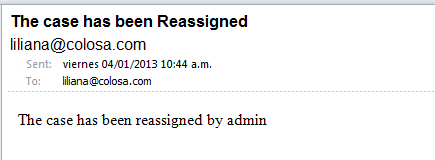
As an example to use this property in a task we will enable this property. Then we can create a user in Users & User Groups (Ad hoc). When running the case the user assigned to the task can reassign by clicking in Actions and in the actions menu in Adhoc Assignment, where a dialog with a list of the Users & User Groups (Ad hoc). We can see this in the illustration.

File:Task_permission_sample.png‎

Task Case Labels

By default cases are labeled according to their case number, which can make them difficult to identify when looking at a list of cases. Users scanning the list will not know which cases to work on when they have titles such as "#1", "#2", "#3", etc. The Case Title and Case Description can be customized to provide more better information about the case.

Image:TaskPropertiesCaseLabels.png

There are two fields for this property:

  • Case Title: In this field the user can assign names to the cases. In the name we can insert variables. Use the [ @@ ] button to view what variables are available and insert them in the expression.
  • Case Description: In this field the user can write a description for the case, and it can be as descriptive as needed.

Task Notifications

This task property is used to send a notification to the next assigned user. For this to work we need to enable notifications.

Image:TaskPropertiesNotifications.png

  • To enable the notification check on: After routing notify the next assigned user(s).
  • Once you enable notification, there will show a message box, which can be filled with the information needed, as shown in the previous ilustration. This field allows variables to be used. Use the [ @@ ] button to view what variables are available and insert them in the expression

Assigning Users to Tasks

After creating tasks for a process, user(s) and/or user group(s) need to be assigned to those tasks. By accessing the users management interface, you can create users and groups.

Assigning Users and User Groups

People who are assigned to a task will be given access to the case and the power to complete the steps in the task. Their access to information about the case can be limited. For managers who want to review cases, it is better to assign them as Supervisors to the case.

A task can be assigned to individual user(s) and/or group(s) of users. If assigned to a group, anyone in that group can complete the task. If more than one user is assigned to a task, the task will be passed between the available users until someone completes it. See Configuring Task Assignment.

Generally it is better to assign tasks to groups rather than individual users, even if there is only one user in the group. The user assignments will be lost whenever a process is exported, but the group assignments aren't lost. After importing a process, it is easier to assign users to groups in ProcessMaker, rather than having to go through all the tasks, manually assigning users. For instance, if your organization has a chief financial officer named Sally Barnes, then create a group called "Chief Financial Officer" and assign Sally Barnes as its member. If the chief financial officer for your organization changes or you need to export all your processes to another server, all you will need to do afterwards is assign a user to the group "Chief Financial Officer", rather than reedit all your processes.

To assign user(s) and/or group(s) to a task, right click on the task in the Process Map and select the option Users & User Groups from the menu. In the dialog box which appears, click the Assign link to open another dialog box which lists the available users and groups. Groups are listed first and show in parenthesis the number of members in the group. To search for a user or group, type part of their name in the Search box and press ENTER. (Note that the search is case insensitive and can not include wildcard characters.) After a search, return to the full list of available users and groups by clearing the Search box and pressing ENTER. Once the desired user or group is found, click on Assign.

image:AssignUsersToTask.png

Assign Users and User Groups (Ad-hoc)

In some cases, it is difficult to know when designing a process who should complete a task. In this case, it is best to assign user(s) or group(s) who can make the decision who should complete the task. Then assign everyone who might be available to complete the task on an ad hoc basis. The normally assigned users can then reassign the task to anyone who has the ad hoc assignment.

To assign users or groups to a task on an ad hoc basis, right click on the task and select the option Users & User Groups (Adhoc) from the menu.

Once this is set, the Adhoc assignment can be performed in the Cases Menu in the Unified Workspace, under the tab "Actions" tab, option "Adhoc Assignment".

Importing and Exporting Processes

Processes designed in another installation of ProcessMaker can be imported into your installation. This procedure will only import the process definition (including DynaForms, Input and Output Documents and triggers) and group accounts, but will not import user accounts, roles, or any cases. If you need to transfer this extra information to your installation of ProcessMaker, see Backing up and Restoring ProcessMaker.

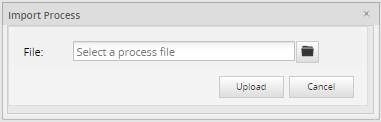
To import a process, go to the PROCESSES tab and click on the Import link at the top of the list of processes. In the dialog box, select a process to import. (Note that process files have a .pm extension).

Image:Import_Process.png

After importing a process, assign users to tasks in the process and it will be ready to use.

Exporting Processes

To export a process, go to the PROCESSES tab and select the desired process from the list and click its Edit link to open its Process Map. Right click on a blank area in the Process Map and select the option Export Process from the menu. A dialog box will display the title of the process, description of the process, the size of the export file in bytes and a link to the file. Click on the link to download the export file to your computer.

Image:Export_Process.png


Activating Debug Mode

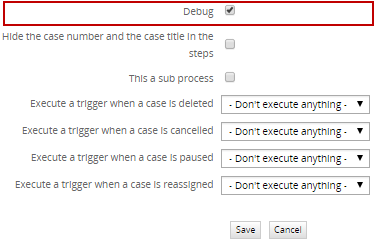
When designing a process, it is a good idea to activate the Debug option, which will show you when triggers are fired during routing rules and any errors which occur. In normal production mode, error reporting is suppressed, so it is often difficult to know whether the trigger code executed correctly or not. More importantly, "Debug" mode allows you to examine the values in the variables which are passed to triggers. For security reasons be sure to deactivate "Debug" mode when your process is used in production.

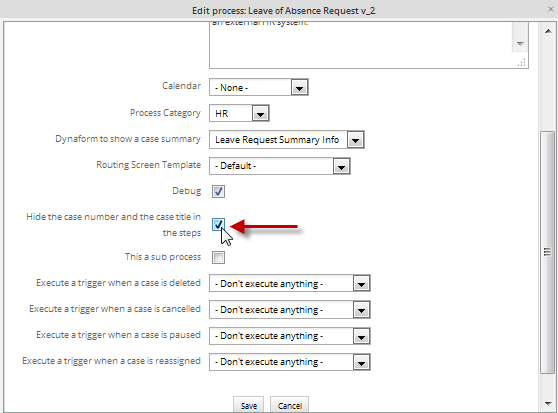
To activate "Debug" mode, right click on a blank area in the Process Map and select the option Edit Process. In the dialog box which appears mark the Image:Checkbox.png Debug checkbox and click Save.

Image:EditProcess.png

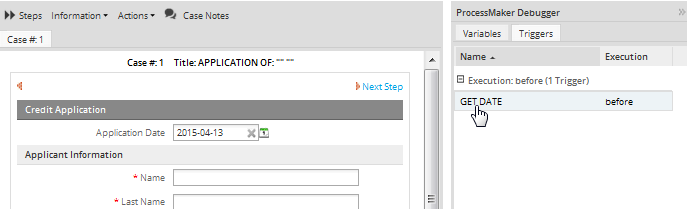
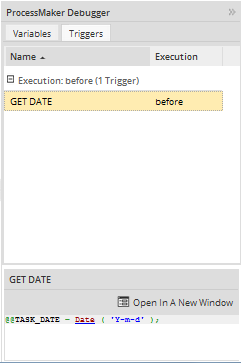
Now when triggers fire during a case, a pane containing information about the trigger will be displayed. To examine the code in the trigger, hover the mouse cursor over the name of the trigger.

Image:DebugShowTriggerCode.png

The variables which are passed to the trigger in an array can also be examined. Click on each variable in the section [Variables involved in the Triggers], to see the values being passed.
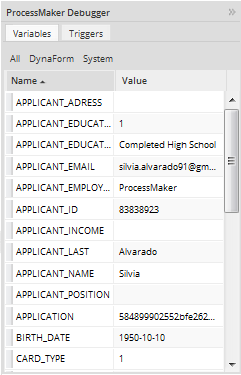
Image:DebugShowVariables.png

translations